Where to Find Your Digital Bundle Download After Checkout
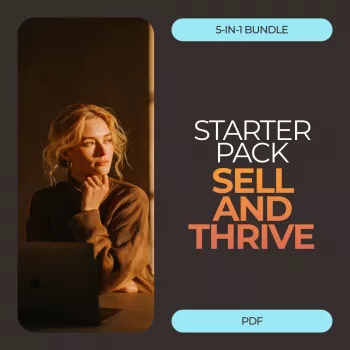
How do I access and download the files after purchase for a digital bundle like this?
After you complete checkout for a digital bundle, access is usually granted automatically. Look for an order confirmation page right after payment and an email receipt sent to the address you used at checkout. Between those two places, you’ll typically find a “Download,” “Digital Downloads,” or “Access Files” button that takes you to the files included in your purchase.
Step-by-step: finding your download link
1) Check the thank-you/confirmation page: Once payment goes through, many stores show a download section immediately. If you closed the tab, move to the next steps.
2) Open your order confirmation email: Search your inbox for the store name or your order number. Also check Promotions, Updates, Spam/Junk, and any filtered folders. The email often contains a direct download link or instructions to access your files.
3) Use your customer account (if available): If you created an account at checkout, sign in and look for “Orders” or “Downloads.” Digital files are commonly stored there for easy re-download.
Downloading tips (so files open correctly)
If the bundle downloads as a .ZIP file, save it to your device first, then unzip/extract it before opening the individual items. On mobile, you may need a file manager app (Android) or the Files app (iPhone/iPad). On desktop, Windows and macOS both include built-in unzip tools.
If a file type won’t open, confirm you have the right app (for example, PDF reader, spreadsheet app, or a design/editing program). When possible, download on a computer for the smoothest experience, especially for larger bundles.
If your link isn’t showing up
First, verify the payment went through (look for a charged transaction or a “paid” status in your receipt). If you used a different email at checkout than you normally use, search that inbox. Some systems also limit the number of download attempts—if you hit an error, wait a few minutes and try again on a stable Wi‑Fi connection.
For bundle-specific details and what’s included, visit the main guide here: https://enticingwaresbay.shop/guide-5-in-1-digital-download-starter-pack-launch-faster/.
FAQ
Can I re-download the bundle later if I lose the files?
In most cases, yes—use your original confirmation email link or sign in to your account and look under Orders/Downloads. If the link expires or stops working, contact support with your order number for help restoring access.








Leave a comment